APFS
Readonly support for APFS (Apple File System) was first added to Disk Decipher in version 3.2.0. Since APFS is the default filesystem of modern macOS systems, this allows opening containers formatted with default options on macOS.
An APFS container is like a storage pool that holds space, and within it you can create multiple APFS volumes that share that space dynamically. Instead of each volume having a fixed size, they all draw from the container as needed, making storage more flexible and efficient.
APFS built-in compression is supported.
Version 3.18.0 introduces write support for APFS. This feature uses a non-free driver. To cover the license costs, this feature needs to be activated by an in-app purchase.
Encrypted APFS
Version 6.2 adds read-only support for encrypted APFS volumes. An encrypted APFS volume applies encryption at the filesystem-level, whereas container formats like VeraCrypt apply encryption at the (lower) container-level. Both types of encryption can be applied at the same time (examples below) or individually.
- Similar to write support, the APFS license (or the bundled license) is required to use this feature.
- The encrypted volume will be mounted read-only. Note that an APFS container can contain multiple volumes as described above, only the encrypted volume will be read-only.
- Disk Decipher allows entering one password for APFS encryption. If you need support for multiple passwords (i.e. your APFS container contains multiple encrypted APFS volumes with different passwords) please open a feature request.
Mounting
To mount an encrypted APFS volume, expand the "Show advanced options" section in the mount dialog and supply the password in the "APFS encryption" password field.
The supplied password will be used to decrypt any encrypted APFS volume inside the APFS container. In case the password is incorrect, the encrypted APFS volume will be skipped. Other APFS volumes will still be mounted. If the APFS container contains just one encrypted volume, the net result will be empty if the password is incorrect.

Inspecting
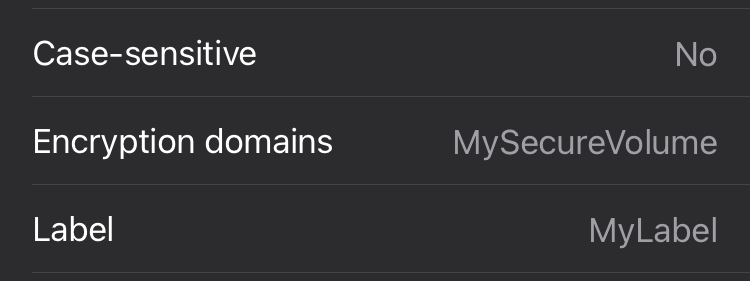
After mounting a disk, simply tap the "i" button at the bottom right. If the filesystem contains an encrypted volume, an "Encryption domains" row will be shown in the Filesystem section, irrespective if the supplied filesystem password was correct or not.
Example 1 - root volume
Here are steps to create a sample disk image using encrypted APFS. This example applies encryption at both the container (DMG) level and filesystem level.
First create and attach a regular APFS formatted DMG image:
$ hdiutil create -size 1g -layout NONE -fs APFS -encryption AES-256 -volname "MyLabel" -attach test.dmg
/dev/disk54
/dev/disk55             EF57347C-0000-11AA-AA11-0030654
/dev/disk55s1           41504653-0000-11AA-AA11-0030654
Make note of the disk device with UUID 41504653-0000-11AA-AA11-0030654 (the one ending on s1), as you need it in the next command:
Detach the image (the first disk device shown on attaching):
You should now be able to mount this disk image in Disk Decipher. Make sure to supply the DMG password in the regular "Password" field and the APFS password in the "APFS encryption" password field.
The "test.txt" file will be shown in the root folder of the mounted disk.
Example 2 - sub volume
In contrast to the previous example, we will now add a second (encrypted) APFS filesystem to the APFS container.
First create and attach a regular APFS formatted DMG image:
$ hdiutil create -size 1g -layout NONE -fs APFS -encryption AES-256 -volname "MyLabel" -attach test.dmg
/dev/disk54
/dev/disk55             EF57347C-0000-11AA-AA11-0030654
/dev/disk55s1           41504653-0000-11AA-AA11-0030654
Make note of the disk device with UUID EF57347C-0000-11AA-AA11-0030654, as you need it in the next command:
$ diskutil apfs addVolume disk55 APFS MySecureVolume -passprompt
$ echo OK > /Volumes/MySecureVolume/test.txt
Detach the image (the first disk device shown on attaching):
You should now be able to mount this disk image in Disk Decipher. Make sure to supply the DMG password in the regular "Password" field and the APFS password in the "APFS encryption" password field.
The "test.txt" file will be shown in the #Volumes/MySecureVolume folder of the mounted disk.